Key takeaway: To get your direct Google review link in 2026: Search your exact business name on Google while signed into your manager account, locate the 'Your business on Google' panel, click 'Ask for reviews', and copy your direct review shortlink.
When asking satisfied customers for feedback, friction is your biggest enemy. If you simply tell customers to 'find us on Google,' more than 70% drop off before ever writing a word. A direct Google review link opens the rating pop-up immediately—bypassing searches, competitor map pins, and navigation menus.
Method 1: The Direct Google Search Method (Fastest)
Google retired the standalone Google My Business dashboard in favor of the in-search merchant panel. Today, managing your profile and generating review links happens directly from Google Search or Google Maps.
- 1**Sign in to Google:** Ensure you are logged into the Google Account that owns or manages your Google Business Profile.
- 2**Search your business:** Type your exact business name into Google Search or type 'my business' to pull up your administrative dashboard.
- 3**Locate 'Ask for reviews':** In the profile management dashboard under 'Your business on Google', click the icon labeled **Ask for reviews** (or 'Get more reviews').
- 4**Copy your short link:** A popup will display your clean, official Google review URL (e.g., `https://g.page/r/.../review` or `https://maps.app.goo.gl/...`). Click copy.
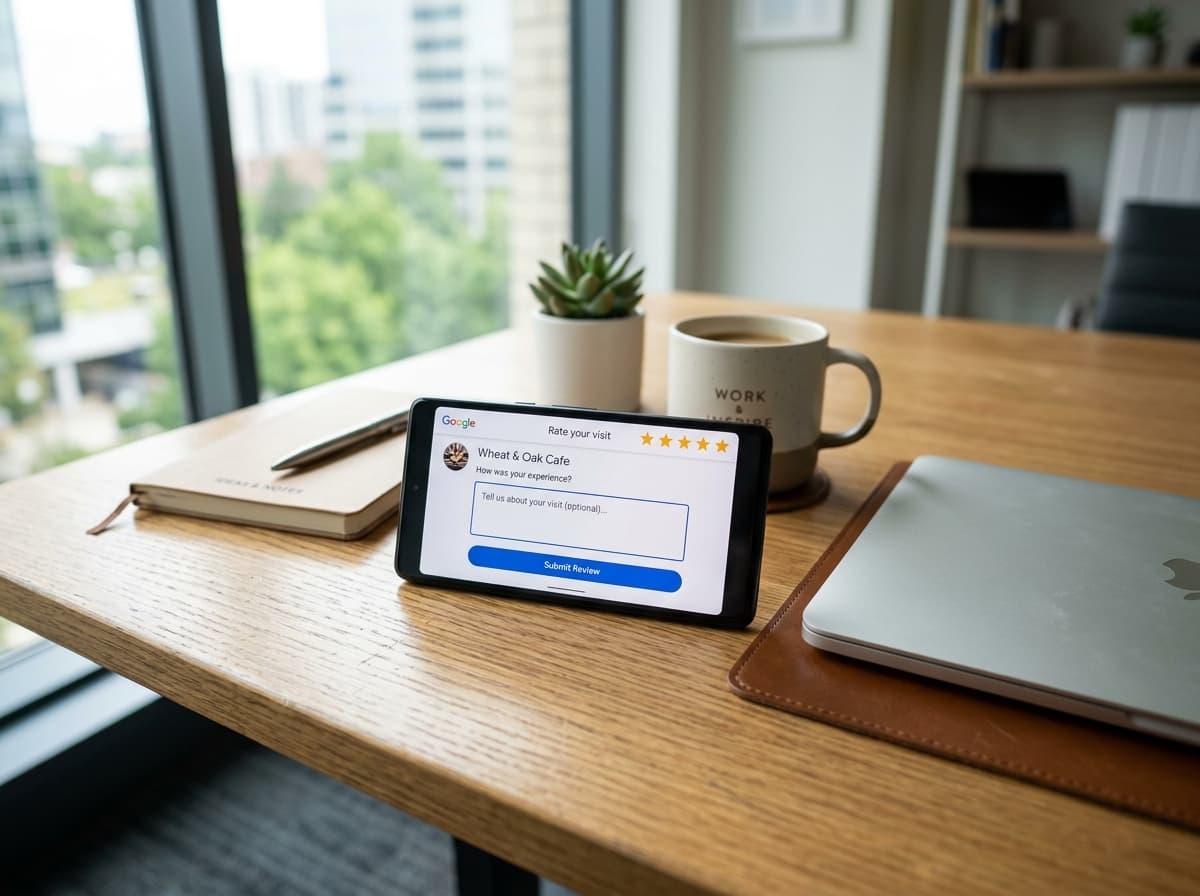
Test your link in an incognito or private browser tab. If it immediately opens the 5-star rating dialog over your listing, it is ready to send to customers.
Method 2: The Google Place ID Formula (For Agencies & CRMs)
If you are an agency managing dozens of client locations, or if you are automating review requests inside a custom CRM, you may not have direct login credentials for every account. You can build a permanent review URL using Google's Place ID.
- Visit the official **Google Place ID Finder** tool in Google Maps Platform documentation.
- Type your business name and address in the map search bar.
- Copy the alphanumeric Place ID code displayed on your location pin (e.g., `ChIJN1t_tDeuEmsRUsoyG83frY4`).
- Append your Place ID to the universal review URL structure: `https://search.google.com/local/writereview?placeid=<YOUR_PLACE_ID>`
Comparing Google Review Link Methods
| Method | Best Suited For | Mobile Optimized | Private Negative Filtering |
|---|---|---|---|
| Google Search 'Ask for reviews' | Small business owners | Yes | No (Direct to Google) |
| Place ID URL Formula | CRM automations & developers | Yes | No (Direct to Google) |
| Zyene Smart Capture Link | Automated SMS/Email campaigns | Yes (1-Tap) | Yes (Shields <4 stars privately) |
3 High-Converting Ways to Share Your Link
Having a direct link is only half the battle. How and when you deliver the link determines whether your review volume grows by 5 reviews a month or 50.
- 1**Automated SMS within 1 hour:** Text messages have a 98% open rate. Sending a friendly SMS review invite shortly after service completion yields the highest conversion rates.
- 2**Countertop QR Codes & NFC Stands:** Place high-contrast QR cards at your checkout counter, waiting rooms, or tables so happy customers can scan and review while waiting.
- 3**Digital Invoices & Receipts:** Include a hyperlinked button saying 'Leave us a review on Google' directly on your post-service completion emails.
Beware of review gating penalties. Google's Terms of Service and FTC guidelines strictly forbid offering financial incentives, discounts, or filtering public reviews based on sentiment without giving customers an open choice.
Scale Your Google Reviews Automatically
Manually copying links and sending individual texts wastes hours every week. Zyene Reviews automates customer review collection via SMS and email, provides branded QR codes, and routes negative feedback privately before it hits your public rating.
Start Generating Google Reviews on Autopilot →
Get Started